
Linkfuse Chrome Browser Extension
We're excited to announce the official Linkfuse Chrome Extension — the fastest way to create shareable product links directly from your browser. If you've been using Linkfuse to manage your affiliate links, you know the drill: find a product, copy the URL, open the Linkfuse dashboard, paste it in, and grab your shortened link. It works, but it's not exactly seamless. Today, that changes.
What It Does
The Linkfuse Chrome Extension brings link creation directly into your browsing experience. Instead of switching between tabs and copying URLs back and forth, you can now generate affiliate-ready links with a single click while staying on the product page you're viewing.
When you're browsing an Amazon product page and want to share it, simply click the Linkfuse icon in your toolbar. The extension reads the current page URL, sends it to your Linkfuse account, and returns your shortened, trackable link. The link is automatically copied to your clipboard, so you can immediately paste it into your blog post, social media update, or message to a friend.
The extension also integrates with your browser's right-click menu. This means you don't even need to open the popup if you prefer a faster workflow. Just right-click anywhere on the page and select "New Link from Current Page." A notification will confirm your link was created and copied, letting you continue browsing without interruption.
The extension supports all Amazon marketplaces worldwide. Whether you're browsing amazon.com, amazon.de, amazon.co.jp, or any of the other 18 regional Amazon sites, the extension works exactly the same way. This is particularly valuable if you create content for international audiences or want to share products from different regional stores.
Key benefits at a glance:
- One-click link creation — Generate links instantly from any Amazon product page
- Automatic clipboard copy — Your new link is copied and ready to paste
- Works globally — Supports all Amazon marketplaces (US, UK, DE, JP, and 17 more)
- Context menu integration — Right-click to create links without opening the popup
- Seamless authentication — Log in once and stay connected
Installation
Getting started with the Linkfuse Chrome Extension takes less than a minute. The extension is available for free on the Chrome Web Store and works with any Chromium-based browser, including Google Chrome, Microsoft Edge, Brave, and Opera.
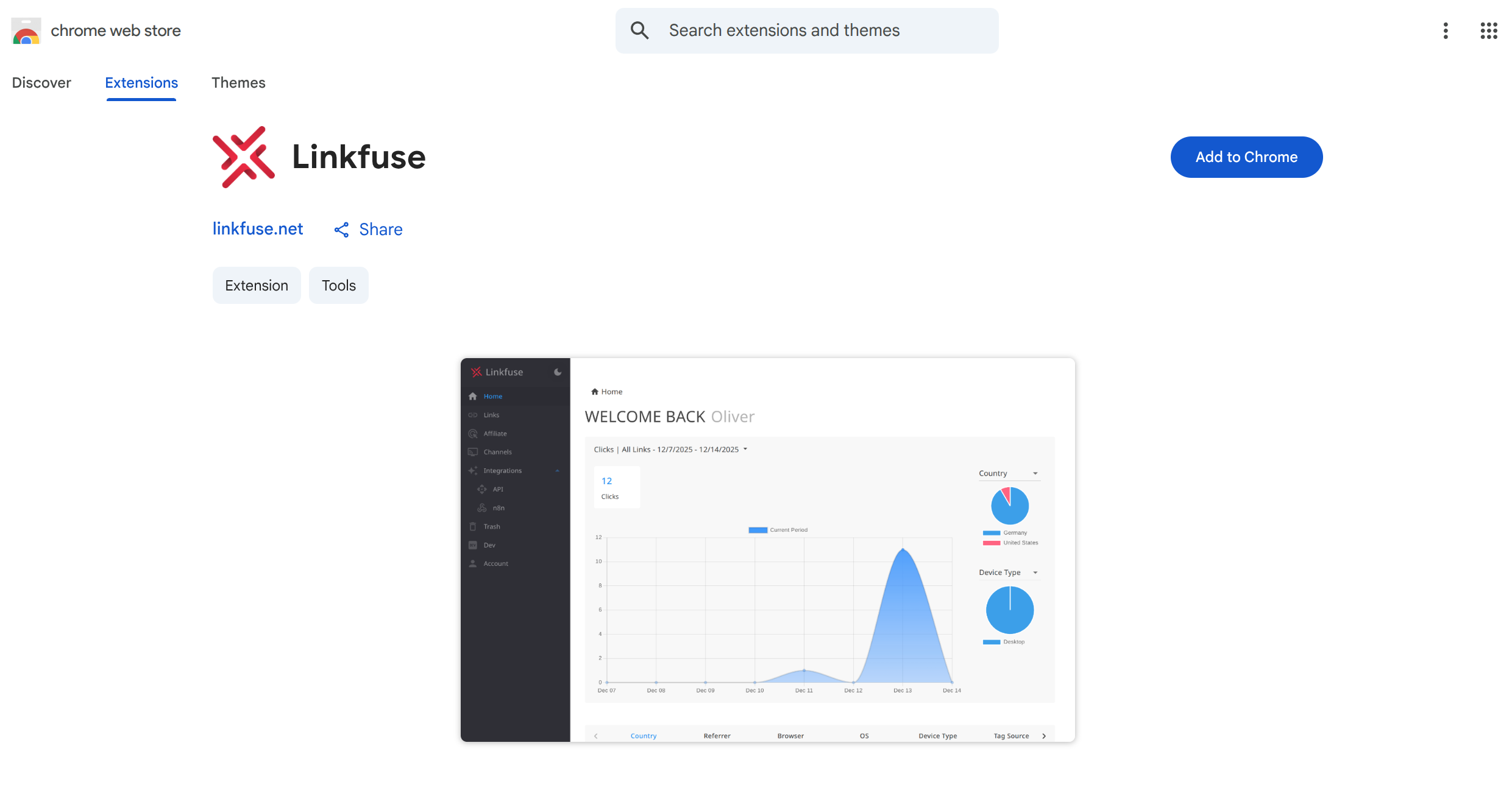
To install the extension, visit the Linkfuse Chrome Extension page on the Chrome Web Store. You'll see our extension listing with a blue "Add to Chrome" button on the right side of the page. Click this button to begin the installation process.
Chrome will display a confirmation dialog showing the permissions the extension requires. These permissions allow the extension to read the current page URL, copy links to your clipboard, and communicate with the Linkfuse servers. Click "Add extension" to confirm and complete the installation.
Once installed, you'll see the Linkfuse icon appear in your browser toolbar, usually to the right of the address bar. If you don't see it immediately, click the puzzle piece icon to view all your extensions and pin Linkfuse for easy access. We recommend pinning the extension so it's always visible and ready to use.
Setup
Before you can start creating links, you'll need to connect the extension to your Linkfuse account. This is a one-time setup process that takes about 30 seconds.
Click the Linkfuse icon in your browser toolbar to open the extension popup. Since this is your first time using the extension, you'll see a welcome screen with a "Login to Linkfuse" button. Click this button to begin the authentication process.
Your browser will open a new tab and navigate to the Linkfuse website. If you're already logged into your Linkfuse account, the authentication will complete automatically. If you're not logged in, you'll see the standard Linkfuse login page where you can enter your email and password, or sign in with your preferred authentication method.
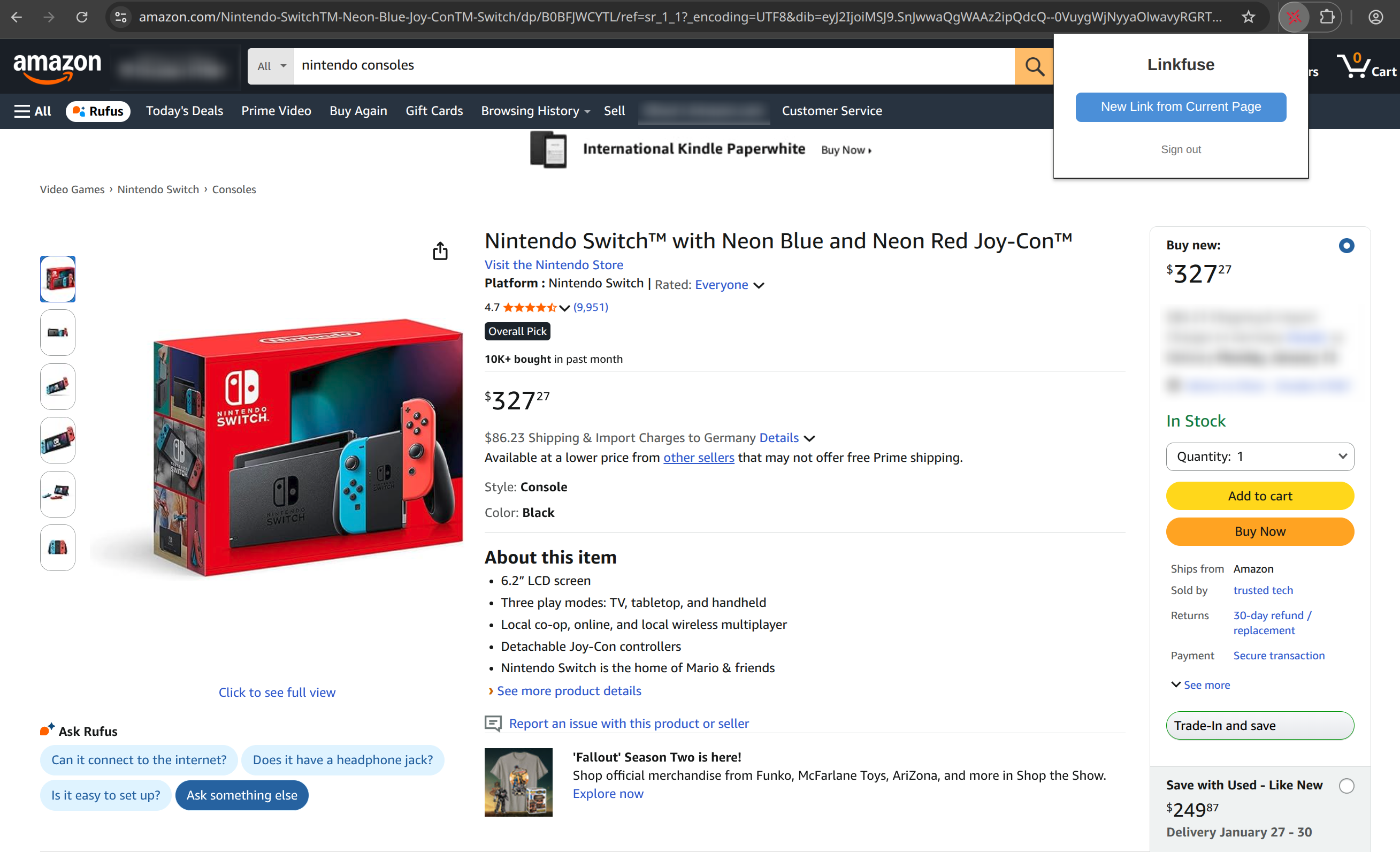
After successful authentication, the browser tab will close automatically and the extension will be connected to your account. You can verify this by clicking the extension icon again — instead of the login button, you'll now see the "New Link from Current Page" button (when on a supported site) or a message indicating the current page isn't supported.
The extension stores your authentication securely in your browser's local storage. This means you'll stay logged in even after closing and reopening your browser. You only need to complete this setup process once unless you explicitly sign out or clear your browser data.
Usage
Once you've completed the setup, creating links becomes incredibly simple. There are two ways to create links with the extension, and you can use whichever method fits your workflow best.
Creating Links from the Popup
The most straightforward way to create a link is through the extension popup. Start by navigating to any Amazon product page. This could be a product you want to recommend in a blog post, share on social media, or send to a friend.
With the product page open, click the Linkfuse icon in your browser toolbar. The popup will appear showing the "New Link from Current Page" button. Click this button to create your link.
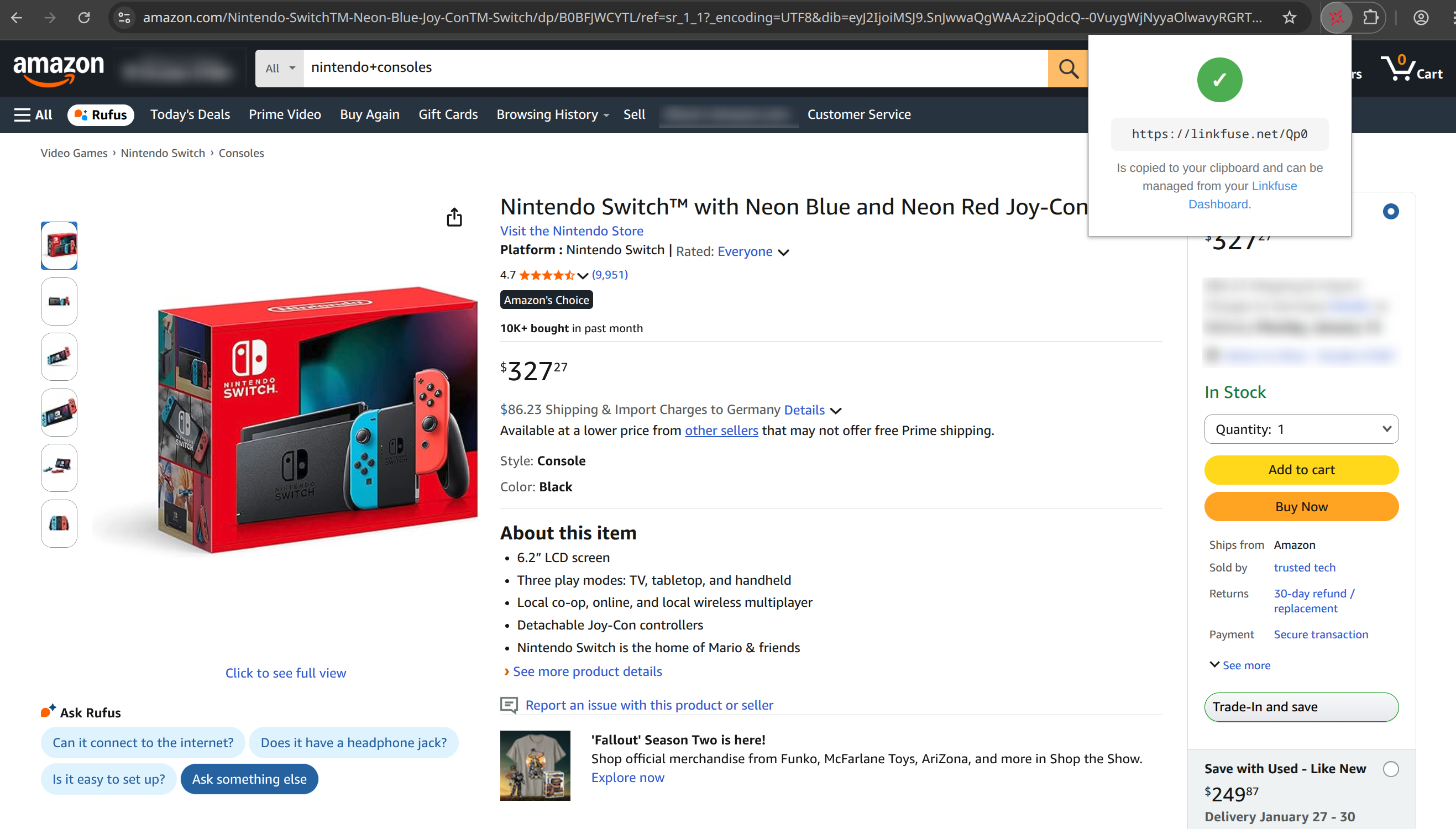
The extension will briefly show a loading state while it communicates with the Linkfuse servers. Within a second or two, you'll see a success screen with a green checkmark and your newly created link displayed below it. The link has already been copied to your clipboard automatically, so you can immediately paste it wherever you need it.
Below the link, you'll see a message confirming it's been copied and providing a direct link to your Linkfuse Dashboard where you can manage all your links, view click statistics, and make any necessary edits.
The popup will remain open until you click elsewhere in your browser, giving you time to review the link or click through to your dashboard if needed. Once you click outside the popup, it will close and you can continue browsing.
Creating Links from the Context Menu
For power users who want the fastest possible workflow, the extension also adds an option to your browser's right-click context menu. This method lets you create links without even opening the popup.
Navigate to an Amazon product page, then right-click anywhere on the page. In the context menu that appears, you'll see "New Link from Current Page" listed among the options. Click this menu item to create your link.
Since there's no popup open to display the result, the extension uses a browser notification instead. A small notification will appear in the corner of your screen confirming that your link was created successfully and copied to your clipboard. The notification includes the generated link URL so you can verify it was created correctly.
This context menu method is particularly useful when you're quickly browsing through multiple products and want to save links for later. You can create link after link with just two clicks each — right-click, then click the menu item — without any interruption to your browsing flow.
Supported Sites
The extension currently works on Amazon product pages across all 21 Amazon marketplaces worldwide. Here's the complete list of supported sites:
Americas:
- amazon.com (United States)
- amazon.ca (Canada)
- amazon.com.mx (Mexico)
- amazon.com.br (Brazil)
Europe:
- amazon.co.uk (United Kingdom)
- amazon.de (Germany)
- amazon.fr (France)
- amazon.it (Italy)
- amazon.es (Spain)
- amazon.nl (Netherlands)
- amazon.pl (Poland)
- amazon.se (Sweden)
- amazon.com.be (Belgium)
- amazon.com.tr (Turkey)
Asia Pacific:
- amazon.co.jp (Japan)
- amazon.in (India)
- amazon.com.au (Australia)
- amazon.sg (Singapore)
Middle East & Africa:
- amazon.ae (United Arab Emirates)
- amazon.sa (Saudi Arabia)
- amazon.eg (Egypt)
Closing
Ready to streamline your link creation workflow? Install the Linkfuse Chrome Extension today and start creating links faster than ever. Have questions, feedback, or feature requests? We'd love to hear from you. Reach out to us at [email protected].